
How to Monitor Security Cameras Using the 365Cam App via Wi-Fi?
Monitoring your security cameras has never been easier than with the 365Cam app. This powerful application allows you to access live video feeds, review recordings, and customize settings for your IP cameras directly through your smartphone or tablet. One of its most convenient features is the ability to operate entirely via WiFi, providing seamless connectivity without complex wiring or technical expertise. In this article, we’ll explore how you can monitor your security cameras using the 365Cam app, optimize its features, and troubleshoot common issues for a flawless experience.
Why Monitor Security Cameras via WiFi?
WiFi connectivity has revolutionized how we manage security systems. Here are some key advantages:
1. Flexibility and Convenience
WiFi-enabled monitoring eliminates the need for long cables, making installation simpler and more flexible. Cameras can be installed in hard-to-reach areas without worrying about physical connections.
2. Remote Access
With WiFi, you can monitor your security cameras from anywhere in the world, as long as you have an internet connection. The 365Cam app makes remote surveillance effortless.
3. Scalability
WiFi networks support multiple devices, making it easy to add new cameras to your system without extensive reconfiguration.
4. Cost-Effective
By using your existing WiFi network, you save on additional cabling and installation costs.
Set Up Security Cameras Using 365Cam App for WiFi Monitoring
To get started with the 365Cam app, follow these simple steps:
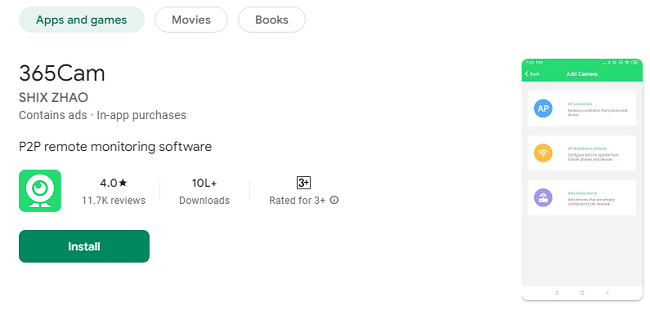
Step 1: Download and Install the App
For Android Users:
Open the Google Play Store.
Search for “365Cam” and download the app.
For iOS Users:
Open the Apple App Store.
Search for “365Cam” and download the app.
Launch the app after installation.
Step 2: Set Up Your IP Camera
Ensure your camera is powered on and reset to factory settings if necessary.
Connect the camera to your WiFi network following the manufacturer’s instructions. Most cameras use a mobile app or a QR code to simplify the process.
Verify the camera’s connection by checking its status light or using a web interface.
Step 3: Connect the Camera to the 365Cam App
Open the 365Cam app on your smartphone.
Create an account or log in if you already have one.
Tap Add Device and choose your connection method (QR code scanning, device ID input, or local network search).
Follow the on-screen instructions to pair your camera with the app.
Once paired, name your camera for easy identification.
Using the 365Cam App for Monitoring
1. Live Video Streaming
The 365Cam app provides real-time video streaming for your connected cameras:
Open the app and select the desired camera from your device list.
View live footage with options to adjust video quality based on your WiFi speed.
Use the pinch-to-zoom feature to focus on specific areas of the frame.
2. Video Recording
Record important events directly through the app:
Tap the Record button during live streaming to save footage to your device.
Access recorded videos in the app’s gallery for playback and sharing.
3. Take Snapshots
Capture images directly from the live feed:
Tap the Snapshot button to save a still image.
Snapshots are saved in the app’s media gallery for quick reference.
4. Two-Way Audio (if supported)
Many cameras paired with the 365Cam app support two-way audio:
Use the microphone icon to speak through your camera.
Listen to audio from the camera feed in real time.
5. Customizable Notifications
Stay informed with motion detection alerts:
Enable notifications in the app settings.
Adjust motion sensitivity and activity zones to reduce false alarms.
Receive instant alerts for any suspicious activity.
6. Playback and Storage
Review past recordings directly from the app:
Navigate to the Playback section.
Select a date and time to view recorded footage.
Use cloud storage (if supported) or local SD card storage for flexible access.
Optimizing WiFi Performance for Seamless Monitoring
WiFi performance plays a critical role in ensuring smooth video streaming and reliable monitoring. Here’s how to optimize your connection:
1. Position Your Router Strategically
Place your router in a central location to ensure strong WiFi signals reach all your cameras.
2. Use a Dedicated Network for Cameras
Set up a separate SSID (WiFi network) exclusively for your security cameras to minimize interference from other devices.
3. Upgrade Your Router
Invest in a dual-band or mesh router to support multiple devices and improve coverage.
4. Monitor Bandwidth Usage
High-quality video streaming can consume significant bandwidth. Limit usage of other devices during critical monitoring periods.
5. Regularly Update Firmware
Keep your router and camera firmware updated to enhance performance and security.
Common Troubleshooting Tips
Problem 1: Camera Not Connecting to WiFi
Solution:
Ensure the camera is within range of your router.
Verify the correct WiFi credentials were entered.
Reset the camera and try reconnecting.
Problem 2: Live Video Feed is Lagging
Solution:
Reduce video quality settings in the app.
Check your internet speed and upgrade if necessary.
Reposition your router closer to the camera.
Problem 3: Notifications Are Delayed or Missing
Solution:
Verify notification settings in the app.
Check your phone’s notification permissions for the 365Cam app.
Restart the app or reinstall if issues persist.
Advantages of Using the 365Cam App for WiFi Monitoring
1. User-Friendly Interface
The app’s clean and intuitive design ensures even first-time users can navigate its features with ease.
2. Real-Time Alerts
Stay informed about events in real-time, ensuring prompt action when needed.
3. Multiple Device Support
Monitor multiple cameras simultaneously from a single app, streamlining surveillance management.
4. Customizable Features
Tailor the app’s settings to suit your unique security needs, from motion detection to video quality adjustments.
5. Remote Access
Enjoy peace of mind knowing you can monitor your property from anywhere in the world.
Applications of WiFi Monitoring with the 365Cam App
1. Home Security
Monitor entry points, living areas, and outdoor spaces to keep your family safe.
2. Office Surveillance
Ensure employee productivity and protect sensitive areas like server rooms.
3. Child and Elderly Monitoring
Use the app to keep an eye on children or elderly family members when you’re not at home.
4. Pet Monitoring
Check in on your pets and ensure their well-being throughout the day.
5. Vacation Property Management
Monitor your holiday home remotely to ensure its safety while you’re away.
Conclusion
The 365Cam app simplifies the process of monitoring your security cameras via WiFi, offering a user-friendly interface and robust features to keep your property secure. By following the steps outlined in this guide, you can set up and optimize the app for seamless surveillance. Whether it’s real-time video streaming, customizable alerts, or playback functionality, the 365Cam app ensures you’re always connected and in control. Download the app today and experience the convenience of WiFi-enabled monitoring!
Trending Now
Updates